Stutter in fights?
Background apps step aside.
For Windows PCs that drop frames in fights. PRO moves background apps aside while you play, then puts them back.
- No kernel driver installed
- No code injected into your game
- Game memory is never read or written
If this sounds familiar, PeakFPS is for you
If lowering your graphics settings changed nothing, look at the background apps running alongside your game.
- Fine most of the time, but frames drop the moment a fight starts
- It stutters when Discord, a browser or a download is left running
- Lowering graphics settings did not stop the stutter
- Optimizers change things you cannot see, so you are not sure you can undo them
What changes when you play
No settings to study and no apps to close before every game. With PRO, starting a game is enough for background apps to give way, and quitting puts your PC back to normal.
Start your game
Your game, Discord and OBS are left as is.
Background apps step aside
The browser moves back, and background apps using the GPU or network pause briefly.
Quit and it all goes back
Apps that moved back or paused return to normal.
Doing it yourself
- Close apps in Task Manager before every game
- Turn them back on one by one afterwards
- Remember what you changed
PeakFPS PRO
- Automatic when you start a game
- Back to normal when you quit
- Restored on next launch, even after a forced close
If a call or streaming app is running, some items are restored after you close it. Which apps get paused differs by PC.
One-click optimization
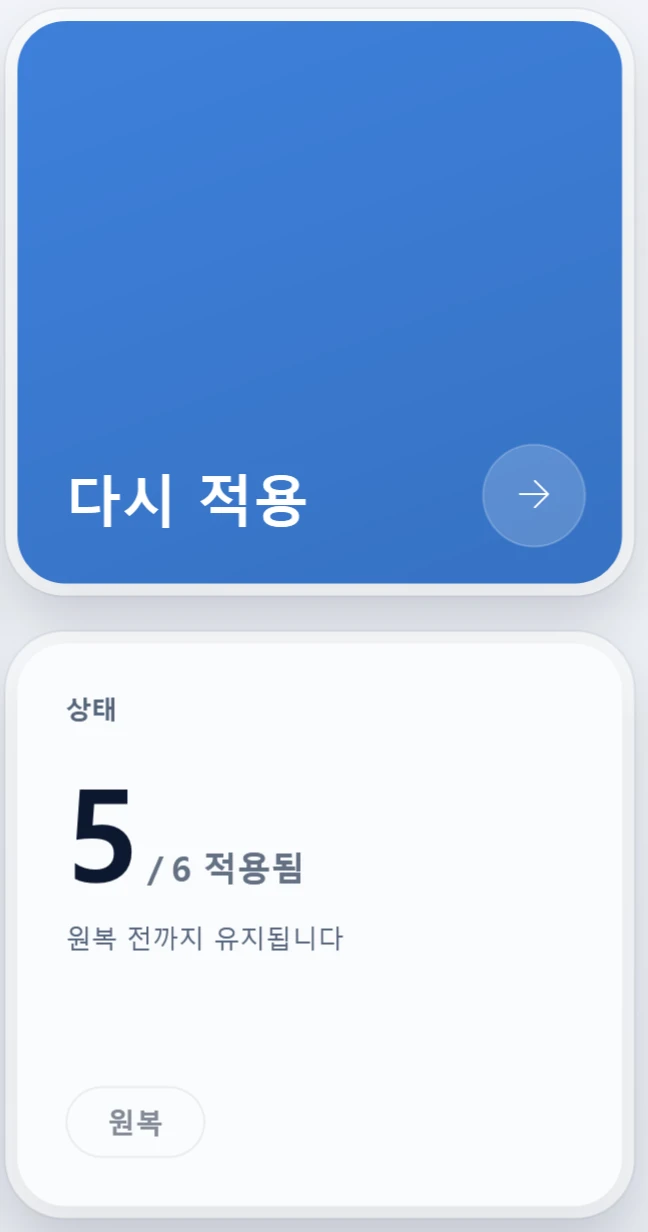
One click adjusts six Windows items, such as holding the CPU clock and Windows Game Mode, toward your game to suit your PC. Items that already fit are skipped, and changed settings stay until you press Undo.
- Undo with a single pressNot happy? It goes back right away
- Analysis screen
Auto optimization
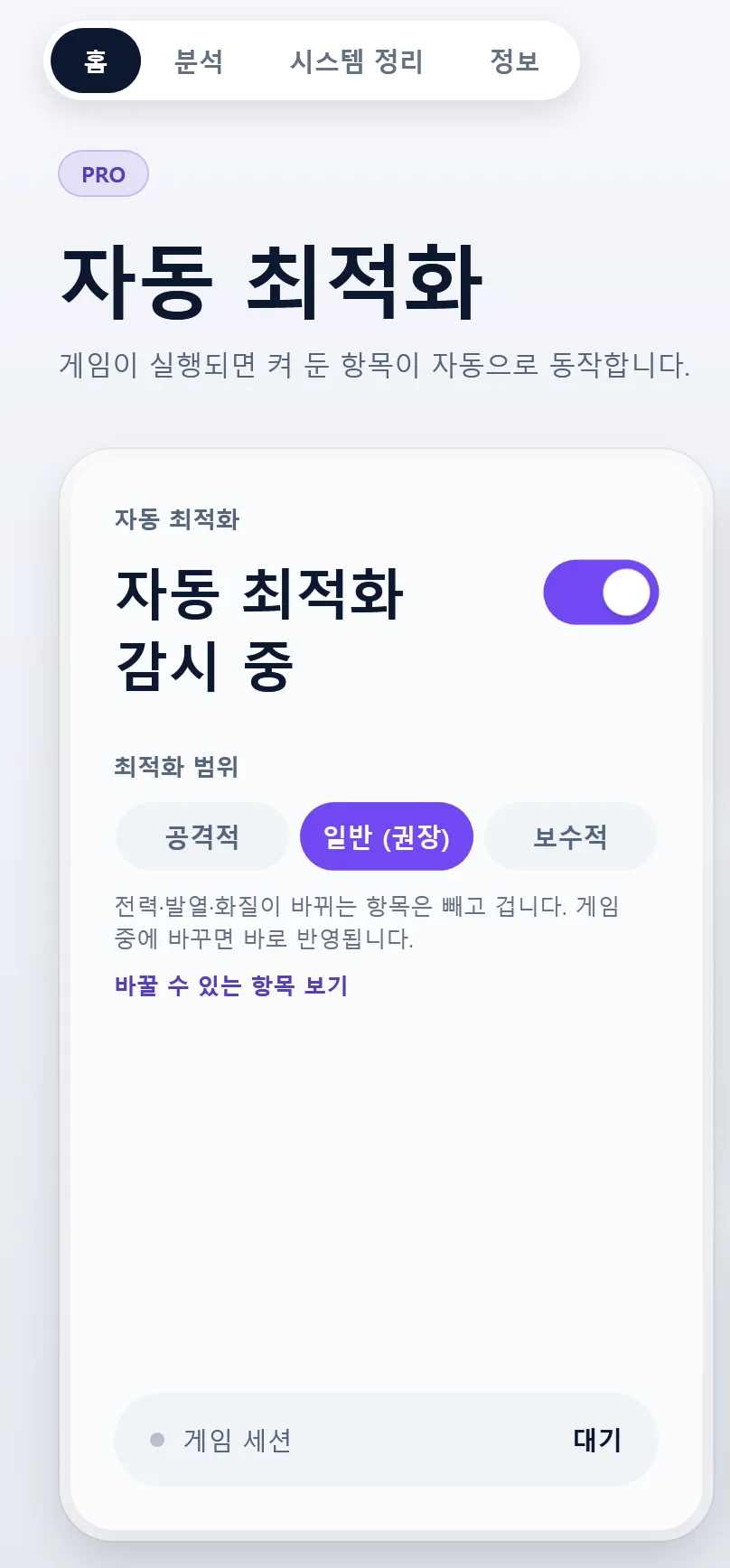
On top of the six free items, it applies advanced items that reach into CPU scheduling, memory and the display path, matched to your game and only while you play. In PRO you choose an optimization scope and turn each of the three background app cleanups on or off. Aggressive applies more items and Conservative applies only the safe ones. It starts on Balanced (recommended).
Only while you play
- Advanced optimization 25The free 6 plus CPU, memory and display items
- Auto-pause competing GPU appsBriefly pauses apps that share the GPU with your game
- Clean up background apps when memory runs lowSteps in only when memory is short
- Pause background apps using the networkKeeps downloads and sync off your game’s connection
When you need it
- System cleanup (services and visual effects, PC health check)
- Problem diagnosis
User reviews
“I played with it on, then turned it off, and the frame rate felt noticeably sluggish. Once you know the difference, there is no going back.”
je***TesterTranslated from Korean
“It makes me want to keep it running whenever I play. Turn it off and the frames feel sluggish.”
ak***TesterTranslated from Korean
“Compared with before, the frame rate clearly went up, and it stayed stable enough that I could really feel it.”
so***TesterTranslated from Korean
“It is a low-end laptop, so I had my doubts, but it works really well ♡♡”
li***TesterTranslated from Korean
“I really felt it in PUBG and Tarkov. In Tarkov you notice even a small frame gain, and it worked really well!”
gy***TesterTranslated from Korean
“This is on my PC, but I could clearly feel the frame rate go up.”
ki***TesterTranslated from Korean
“Frame drops in VALORANT team fights are clearly smaller. I compared it on and off, and it is clearly better with it on.”
na***TesterTranslated from Korean
Measurement records (Korean)What it changes and restores (Korean)
Creators we work with 굥시아, 솔단, 아키코
Start free. Go advanced and automatic with PRO.
The app interface is currently in Korean. PRO can only be paid for with Korean payment methods for now.
FREE
Free
Ready right after install
- Basic optimization 6, applied at the press of a button
- Undo with the Undo button
- Analysis screen
- Not included: Advanced optimization items · system cleanup
- Not included: Automatic when you start a game
- Not included: Background app cleanup · problem diagnosis
Runs on Windows 10 · 11.
PRO
₩14,900
One payment, lifetime use, free updates
- Advanced optimization 25 (includes the free 6)
- Automatic when you start a game, undone when you quit
- Optimization scope: Aggressive, Balanced, Conservative
- System cleanup: services and visual effects, plus a PC health check
- Cleans up background apps using the GPU, memory or network
- Analysis screen · problem diagnosis
Payable only by Korean bank transfer or the Naver Smart Store for now. Leave your email to hear when international checkout opens.
- FREE costs nothingNo account and no payment details
- One-time purchaseLifetime use and free updates, no subscription
- Undo anytimeFREE with the Undo button, PRO automatically when you quit
- Back to normalEven after a forced close, leftover changes are restored on next launch
No international checkout yet. Tell us if you want PeakFPS.
PeakFPS cannot be bought from outside Korea yet. We opened this English page to see how many people abroad want it. If you would like to use PeakFPS, press the button below. It tells us one more person is waiting.
Get notified when international checkout opens.
PRO cannot be bought from outside Korea yet. Leave your email and we will let you know once when it can.
FAQ
How do I install it?
1) Run the setup file (PeakFPS_Setup) from [Free download]. 2) Because it is a new program with few downloads so far, Windows SmartScreen may show "Windows protected your PC". It is not malware: click [More info] on the blue window, then [Run anyway]. 3) Click [Yes] in the User Account Control window, then the install button ([설치]; the installer is in Korean). PeakFPS is installed to C:\Program Files\PeakFPS and appears in the Start menu. 4) If your antivirus blocks it, add it as an exception (allow) and run it again. The app interface is in Korean.
I used the old ZIP version. What do I do?
Run the setup file and PeakFPS is installed fresh to C:\Program Files\PeakFPS. Your license and settings carry over regardless of the folder, and you can delete the old folder once setup is done. If you kept it in a folder OneDrive syncs, such as the Desktop or Documents, automatic updates could fail there; the installer always installs outside OneDrive, so that problem goes away too.
Which games does it help?
The more a game uses the CPU, the bigger the difference you feel. In a controlled test where background work was using the CPU, we confirmed that the frame floor (1% Low) that had dropped because of the contention recovered. Results can differ by PC and environment, and high-end games that already use the GPU to its limit may see limited benefit.
Are there cases where it does not help?
In high-end games where the GPU is already used to its limit (a GPU bottleneck), the benefit is limited. The cleaner the PC, the smaller the effect; the more tangled the background apps and settings, the larger it is.
My monitor is 144Hz. Does a frame rate above that still matter?
Yes. People often say that on a 144Hz monitor you cannot see anything above 144 fps, so it is pointless. That is only half right. The refresh rate is indeed the upper limit on how many images the monitor shows per second. But when the frame rate is higher than that, two other things improve instead of the number of images you see. First, input latency drops. On the same 144Hz monitor, a higher frame rate means the image shown at each refresh was drawn more recently, so the time from moving your mouse to seeing it on screen gets shorter. This is why competitive pros run their frame rate well above the monitor limit. However, if you simply uncap it until the GPU hits 100%, the render queue backs up and latency can actually rise; the lowest latency comes just below GPU saturation (a slight cap, or Reflex limiting it automatically). If you use G-Sync or FreeSync (VRR), it is a little different. Then it is better to cap the frame rate just below the refresh rate, because going above the limit leaves the VRR range and the screen tears. In a VRR setup, cap 3 below the refresh rate and turn on Reflex. Uncapped gives the lowest absolute latency but tears; with VRR, a cap plus Reflex gives almost the same latency without tearing. Second, the floor matters more than the average. What people feel as lag is not the average frame rate but the moments when frames suddenly drop during a fight (1% Low). However high the average, if the floor falls below the refresh rate in fights, it looks choppier than a PC with a lower average that holds the refresh rate steadily. The goal of optimization is not to produce a big number you cannot see, but to keep that floor above the refresh rate even in fights.
How does it raise the frame rate?
It does not create performance that was not there. It removes, only while you play, the things that were eating into the performance you already have. There are three main parts. 1) Background cleanup: browsers, sync apps, updaters, RGB programs and the like share CPU and memory with your game, so during a game their priority is lowered and resources go to the game first. Call and streaming programs such as Discord and OBS are excluded. 2) Clock hold: the default Windows power settings put CPU cores to sleep and lower clocks to save power, and if the clock catches up late at the moment load spikes in a fight, the frame floor can drop deeper. During a game, cores are kept awake and the clock is held high to reduce that delay. 3) Stutter-cause removal: settings that cause stutter, such as the graphics driver, display path and scheduling, are adjusted for the game. Automatic optimization is applied only when you start a game and returns to the original values when you quit.
Will anti-cheat flag it?
It installs no kernel driver, injects no code into the game process, and never reads or writes game memory. It only adjusts power, registry and graphics driver settings that Windows provides, plus background processes and services, so its path is different from the behavior anti-cheat looks for. The developer has played over 400 matches with it running in titles such as VALORANT and PUBG without any enforcement action. Anti-cheat policies are set by each game publisher and can change at any time, so we do not guarantee that no action will occur. When you close the program, the settings it changed are restored automatically.
Can I buy PRO from outside Korea?
Not yet. PRO can currently be paid for only by Korean bank transfer or through the Naver Smart Store in Korea. The free tier works anywhere. Leave your email in the form on this page and we will let you know once international checkout opens.
Is the app available in English?
Not yet. The app interface is currently in Korean. This page is in English so you can see what PeakFPS does before you download it.